App installieren
So wird die App in iOS installiert
Folge dem Video um zu sehen, wie unsere Website als Web-App auf dem Startbildschirm installiert werden kann.
Anmerkung: Diese Funktion ist in einigen Browsern möglicherweise nicht verfügbar.




Du verwendest einen veralteten Browser. Es ist möglich, dass diese oder andere Websites nicht korrekt angezeigt werden.
Du solltest ein Upgrade durchführen oder einen alternativen Browser verwenden.
Du solltest ein Upgrade durchführen oder einen alternativen Browser verwenden.
T14*/T15* T14s Gen 1 wo Sicherung Hintergrundbeleuchtung Display?
- Ersteller Csf
- Erstellt am


think_pad
Rather active member
- Registriert
- 20 Feb. 2014
- Beiträge
- 6.629
Ich hab zwar dieses neumodische ThinkPad nicht, aber nach meiner Internet-Recherche heißt das Teil FV1 3a 32v, die Händlerbezeichnung lautet 0438003.WR 3A 32V ceramic fuse, auf der Platine ist es mit FV1 gekennzeichnet und sitzt direkt neben FV2 am äußeren Rand der mittleren Hauptplatine.
rumpumpel1
Well-known member
- Registriert
- 27 Nov. 2012
- Beiträge
- 651
 hab das Gerät vor mir liegen und suche seit einer halben Stunde

- Registriert
- 17 Okt. 2020
- Beiträge
- 1.431
Wollte jetzt nochmal die Lösung kundtun .
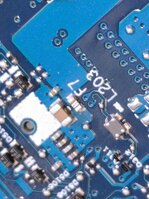
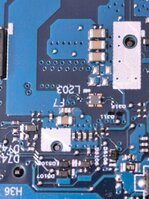
Die Sicherung ist auf Höhe des connectors vom Displaykabel.
Allerdings auf der Rückseite des Boards.
Die Sicherung hat die Bezeichnung F7.
Wenn man genau hin schaut erkennt man einen Riss mittig der Sicherung.
Wurde getauscht, Beleuchtung des Displays funktioniert wieder einwandfrei
Danke nochmals
Die Sicherung ist auf Höhe des connectors vom Displaykabel.
Allerdings auf der Rückseite des Boards.
Die Sicherung hat die Bezeichnung F7.
Wenn man genau hin schaut erkennt man einen Riss mittig der Sicherung.
Wurde getauscht, Beleuchtung des Displays funktioniert wieder einwandfrei
Danke nochmals
Anhänge
To fuse the backlight display on a Lenovo ThinkPad T14s Gen 1, you need to locate the fuse responsible for the backlight circuit. This process can be intricate and typically requires some experience with electronics repair. Here is a general guide to help you:
Tools and Materials Needed:
- Precision screwdriver set
- Plastic spudger or prying tool
- Multimeter
- Soldering iron and solder (if replacement is necessary)
- Replacement fuse (if the original is blown)
Steps to Fuse Backlight Display:
- Power Off and Unplug:
- Make sure the laptop is turned off and unplugged from any power source. Remove the battery if possible.
- Remove the Back Cover:
- Use a precision screwdriver to remove all screws securing the back cover.
- Carefully use a plastic spudger or prying tool to detach the back cover, starting from the edges.
- Locate the Display Connector:
- Locate the display connector on the motherboard. This is where the display cable connects to the motherboard.
- Identify the Backlight Fuse:
- The backlight fuse is usually located near the display connector on the motherboard. It is a small component labeled with an "F" followed by a number (eg, F1, F2).
- Use a magnifying glass if necessary to locate the fuse.
- Test the fuse:
- Set your multimeter to the continuity or resistance mode.
- Place the probes on either side of the fuse. A working fuse should show continuity or a low resistance reading. If the multimeter shows no continuity or a very high resistance, the fuse is likely blown.
- Replace the fuse:
- If the fuse is blown, it needs to be replaced. Use a soldering iron to carefully remove the blown fuse.
- Solder a new fuse of the same rating in place. Be careful and precise to avoid damaging the surrounding components.
- Reassemble the Laptop:
- Once the fuse is replaced, carefully reassemble the laptop by reversing the disassembly steps.
- Ensure all screws are securely fastened and the back cover is properly aligned.
- Power On and Test:
- Reconnect the battery and power on the laptop.
- Check if the display backlight is functioning properly .

Important Notes:
- Safety: Always ensure you are working in a static-free environment to avoid damaging sensitive components.
- Reference Manual: If available, refer to the service manual for the Lenovo ThinkPad T14s Gen 1 for detailed diagrams and component locations.
- Professional Help: If you are not comfortable performing this repair, it is advisable to seek assistance from a professional technician.

Hallo Zusammen,
habe heute so einen Kanditen bekommen, Kollege hat das Display von einem T580 getauscht ohne die Batterie abzuklemmen, natürlich ist die Sicherung für die Hintergrundbeleuchtung jetzt hinüber...
wo kann man eine neue Sicherung einlöten lassen? ich traue mir das bei dieser Mini-Sicherung nicht zu und habe auch nicht so einen feinen Lötkolben.
bin für Vorschläge dankbar.
Beste Grüße
habe heute so einen Kanditen bekommen, Kollege hat das Display von einem T580 getauscht ohne die Batterie abzuklemmen, natürlich ist die Sicherung für die Hintergrundbeleuchtung jetzt hinüber...
wo kann man eine neue Sicherung einlöten lassen? ich traue mir das bei dieser Mini-Sicherung nicht zu und habe auch nicht so einen feinen Lötkolben.
bin für Vorschläge dankbar.
Beste Grüße
- Registriert
- 17 Okt. 2020
- Beiträge
- 1.431
Also wenn du jemanden im bekanntenkreis hast der diese Sicherung einlöten kann oder hier jemanden findest dann mach das durchaus Sinn. Wenn du es dir selbst nicht zutraust und du keinen hast der dir das machen kann dann bin ich relativ sicher dass ein Geschäft gut und leicht 50 € dafür nimmt wenn nicht sogar mehr.
Dafür bekommst du im Ausverkauf bei Lenovo ein neues Mainboard wenn's denn noch welche gibt.
Du kannst die Sicherung theoretisch auch huckepack auf die alte Sicherung drauf löten.
Dafür bekommst du im Ausverkauf bei Lenovo ein neues Mainboard wenn's denn noch welche gibt.
Du kannst die Sicherung theoretisch auch huckepack auf die alte Sicherung drauf löten.

- Registriert
- 20 Apr. 2007
- Beiträge
- 80.004
Laut Google kosten die T14s Gen 1 Boards ca. € 180.- und höher. Gen 2 Boards nur die Hälfte.Dafür bekommst du im Ausverkauf bei Lenovo ein neues Mainboard wenn's denn noch welche gibt.
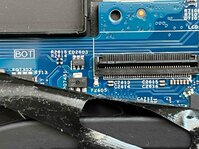
Die erste verdächtige Sicherung beim T580 sitzt vor dem Displayanschlußkabel und heist F2605. Häufig sind noch 2 weitere - und vor allem kleinere - auf der Unterseite des Mainboards defekt.
Neue Ersatzboards müßte jemand hier im Forum einige haben.
Neue Ersatzboards müßte jemand hier im Forum einige haben.
Anhänge
- Registriert
- 17 Okt. 2020
- Beiträge
- 1.431
Die sollte es auch im Ausverkauf noch zu hauf gebenDie erste verdächtige Sicherung beim T580 sitzt vor dem Displayanschlußkabel und heist F2605. Häufig sind noch 2 weitere - und vor allem kleinere - auf der Unterseite des Mainboards defekt.
Neue Ersatzboards müßte jemand hier im Forum einige haben.